I Built a Tool to Automate Our Studio’s Google Drive Workflow (And You Can Have It For Free)
How I stopped wasting time creating folders manually and finally solved the "File Naming" chaos.

If you work in a creative studio, agency, or just handle a lot of freelance projects, you know the "New Project" ritual on Google Drive.
Since you cant duplicate or make copies of entire Google Drive folders, it usually goes like this:
- Create a new folder.
- Rename it.
- Create all the subfolders each project needs.
- Find all the template files and copy them to the relevant folders.
- Rename the template files so now they're specific to this project.
- Repeat until you die of boredom.
For a long time, this was just "part of the job." But as my team grew, cracks started to show.
The Problem: It’s never just "One Folder"
The issue wasn't just creating a folder. It was the depth of the structure.
Our project template isn’t simple. It contains over 10 sub-folders (00_Admin, 01_Briefs, 02_Assets, 03_Budget, etc.). Inside those folders are specific template files that need to follow a strict naming convention.
We needed every file to look like this: 2537_Nike_SummerCampaign_Budget_v01.xlsx
But when you do this manually, human error is inevitable. One editor names it ShoeProject_Budget, another names it 2537_Budget_Nike. Six months later, when you're searching the archive for a file, you can't find anything.
I needed a way to enforce 100% consistency across the team, without forcing them to spend 10 minutes renaming files for every job.
The Solution: The "One-Click" Project Creator
I didn't want to pay for a bloated project management SaaS just to create folders. So, I built a custom tool using the Google ecosystem (Sheets + Apps Script).
It turns the entire setup process into a 5-second task.
Here is how it works:
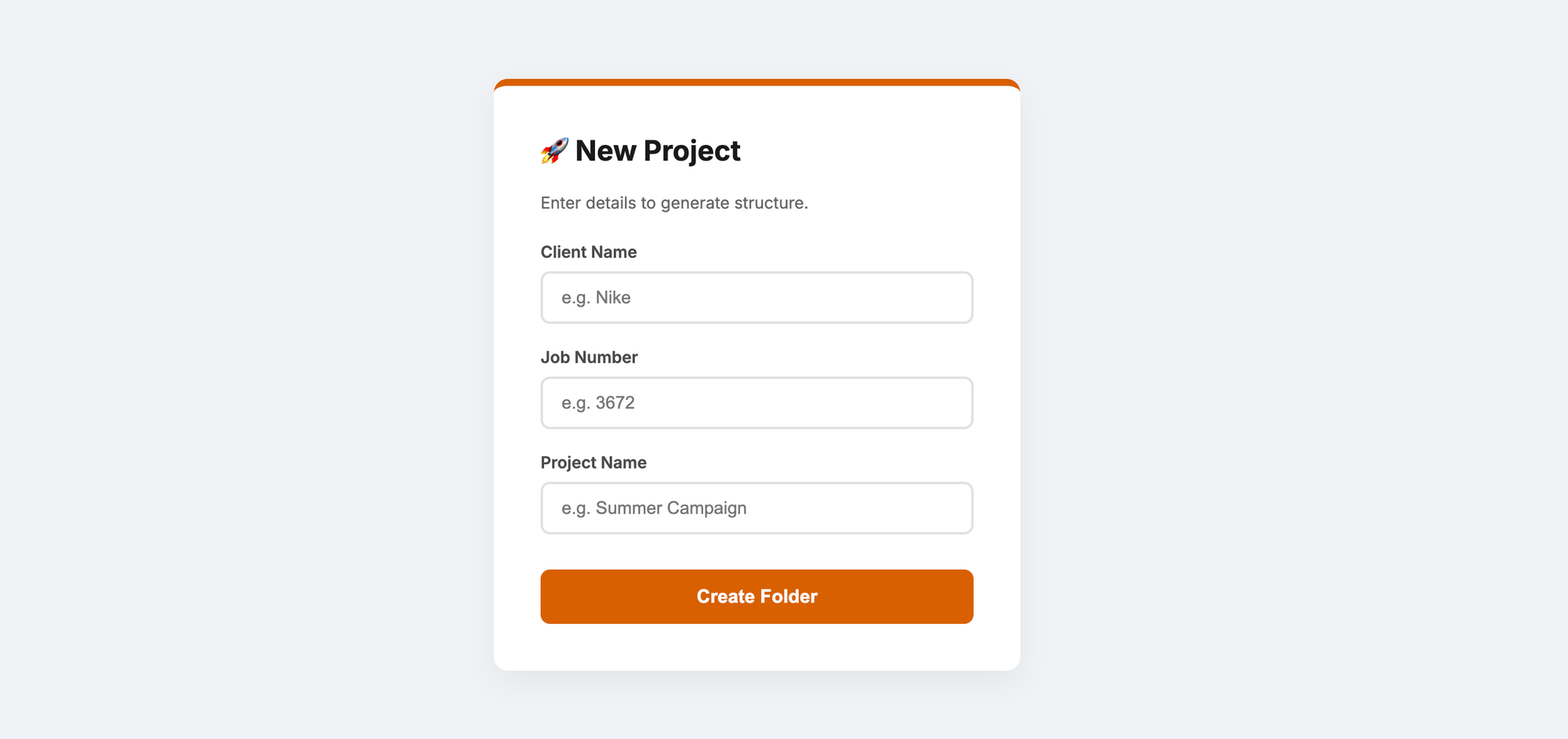
- The Trigger: We open a simple web form (which I saved as an app on our desktops).
- The Input: We type in the variables: Client Name, Project Number, and Job Title.
- The Magic: We hit "Create."
Behind the scenes, the script doesn't just copy the folder. It digs through every single sub-folder and finds any file with a "Tag" in its name (like {{Client}} or {{JobNo}}). It instantly renames those files using the data we just entered.
Why I Moved It to a Google Sheet
Originally, I hard-coded everything. But I wanted this to be flexible—something my team could update without touching code.
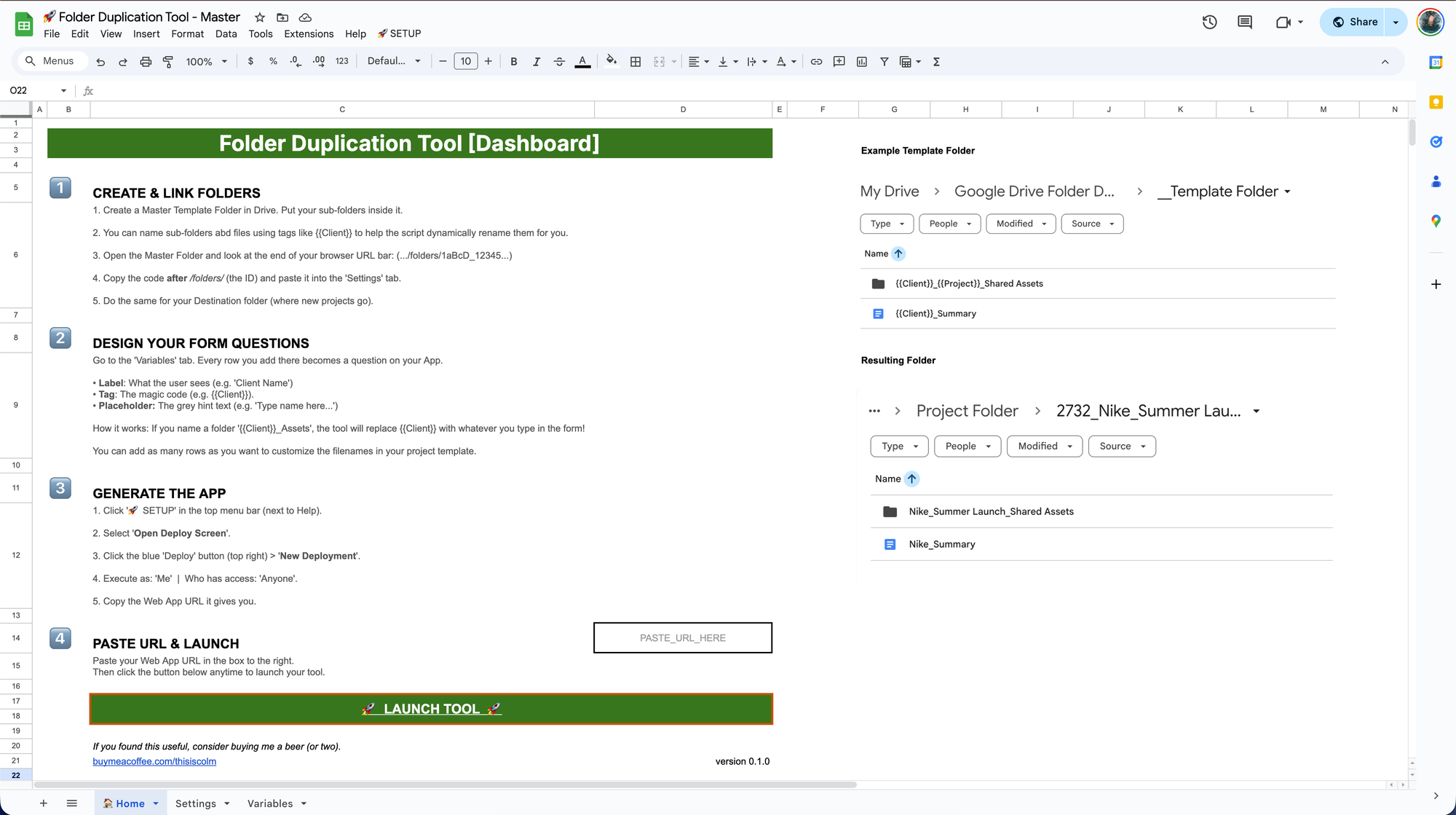
I moved the entire "Brain" of the app into a Google Sheet Dashboard.
Now, if we want to change our folder naming structure, or add a new input field (like "Director Name" or "Year"), we just update a cell in the spreadsheet. The app automatically updates itself.
It handles the complex stuff (deep file renaming) but also works for simple tasks. If we just want to duplicate a folder without the fancy renaming, it does that too.
The Result
- Zero-Effort Consistency: It doesn't matter if a Senior Producer or a Junior Intern sets up the project. The folder structure is identical every single time.
- Searchability: Because file names are standardised, our system search actually works.
- Time Saved: It saves about 20 minutes per initial project setup. That doesn't sound like much, but over a year, it adds up to days of lost production time. Not counting the time spent looking for incorrectly named files!
Want to use it?
I realised this problem isn't unique to me. Whether you are a video editor, a graphic designer, or an architect, you probably have a template structure you use on repeat.
I’ve packaged the tool into a public Google Sheet template. You don't need to know how to code to use it.
How to set it up:
- Copy the Sheet (Link below).
- Paste the IDs of your own Master Folder and Destination Folder.
- Customise your questions in the "Variables" tab.
- Deploy.
You can grab the copy link here: Folder Duplication Tool
Let me know if it helps untangle your Google Drive!